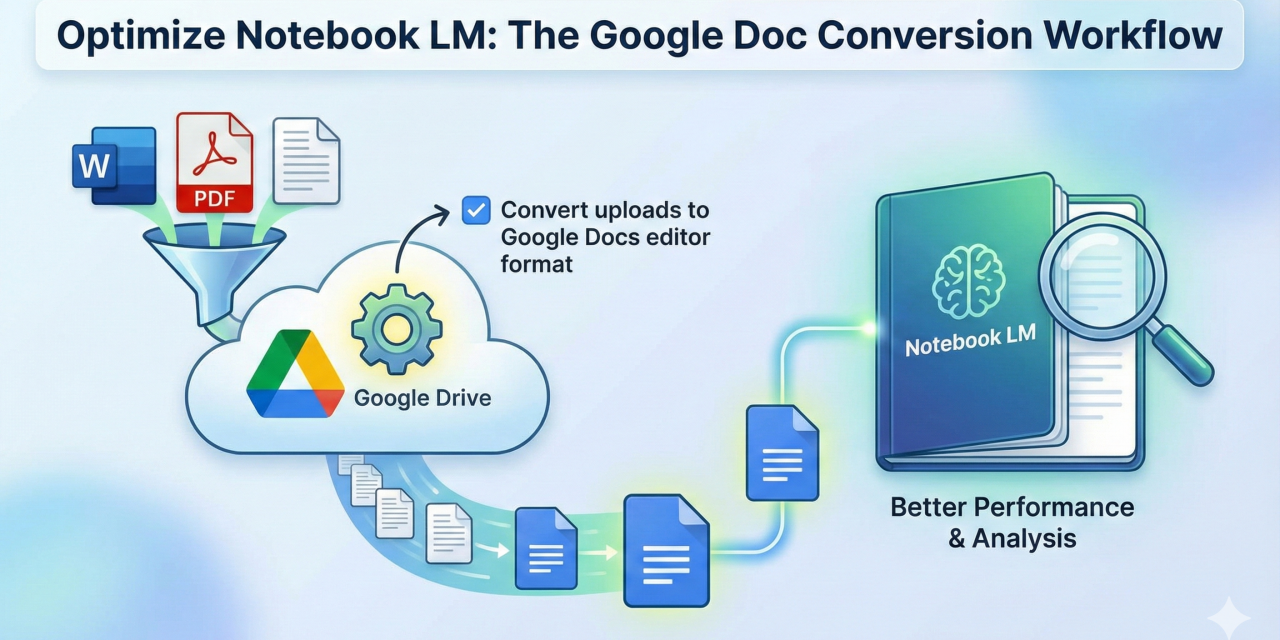
Ready to enhance your efficiency? Follow this simple workflow:
 Step 1: Upload and Convert in Google Drive

- Automate Conversion: Ensure by activating the automatic conversion setting.
- Access this through the Settings icon (cog wheel), selecting Settings, and look for the Uploads header, and then check the box for Convert uploads to Google Docs editor format. This makes your files native Google Docs.
-
Upload: Upload your documents directly to Google Drive.
Step 2: Connect to Notebook LM
-
Access Sources: Open Notebook LM and navigate to your sources.
-
Select Drive: Choose as your source.
-
Attach: Browse to the converted documents folder and attach the necessary files.
Why This Workflow?
This specific process is particularly beneficial for several reasons:
-
Optimal Integration: Notebook LM works best with native Google Docs, ensuring seamless data transfer and analysis.
-
Efficiency: Automating conversion saves time and reduces manual steps.
-
Enhanced Performance: By using compatible formats, you can maximize Notebook LM’s capabilities for analysis, research, and content generation.
- Content Data: Keep your content in one place and easily accessible.


